
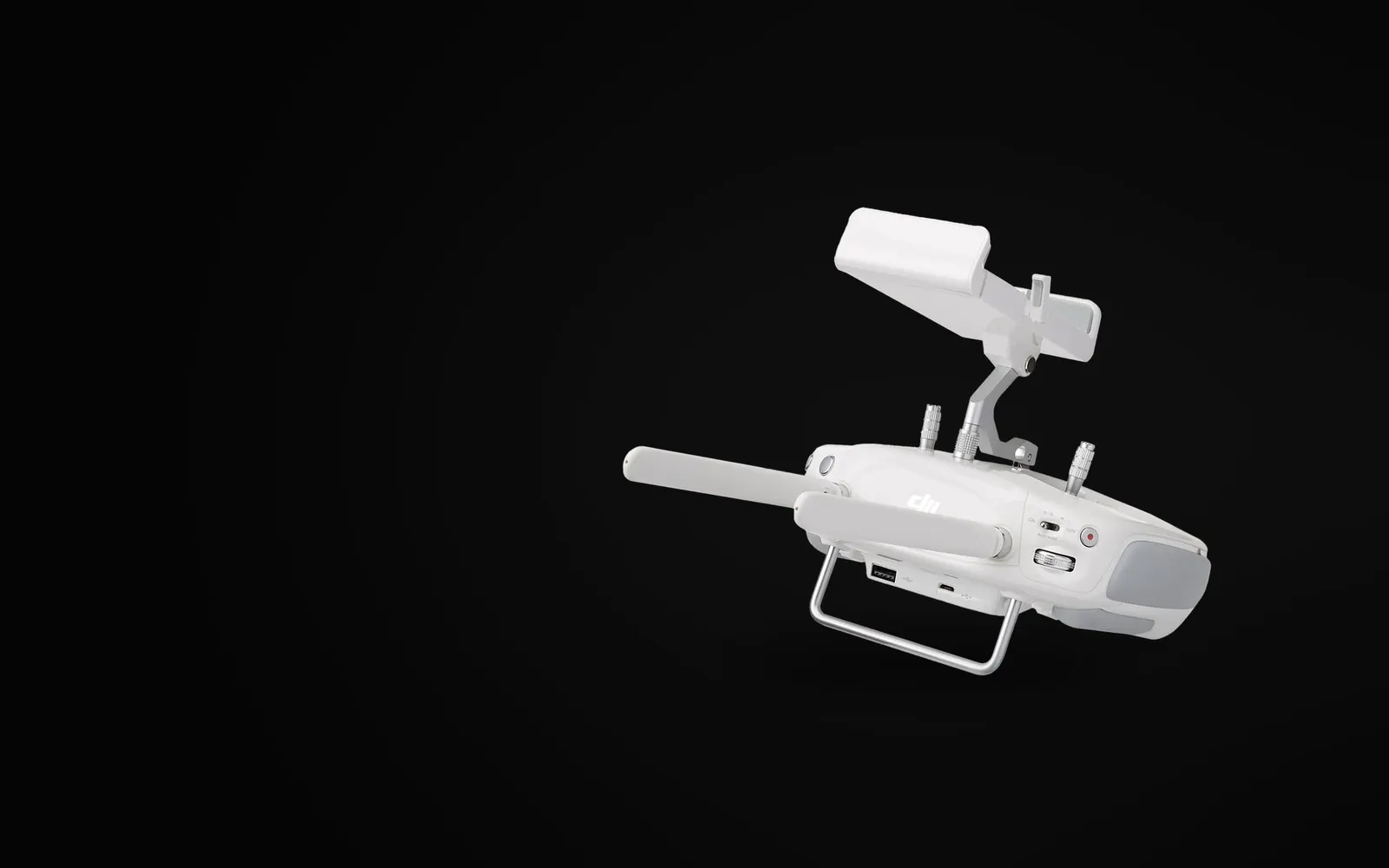
Use the DJI Phantom 4 Pro controller as a PC joystick
Connect your DJI Phantom 4 Pro remote controller to a Windows PC with a micro-USB cable and it shows up as an Xbox controller you can fly with in Liftoff, Velocidrone, DRL, Uncrashed and other drone simulators and games. Free and easy to set up.
views- Python
- pyserial
- vgamepad
- ViGEmBus
- PyInstaller
- Windows
If you own a DJI Phantom 4 Pro, the best drone simulator controller is probably already in your drawer. This small program connects the Phantom 4 Pro remote controller to your computer over USB and lets you use it in Windows as a game controller (joystick). Fly drone and FPV simulators, or play any other game with controller support, using the sticks of your real remote.
Download
DJI-Gamepad.zip (~8 MB, free). It contains four files:
DJI-Gamepad.exe: the program itself. No Python installation needed.ViGEmBusSetup_x64.msi: the virtual Xbox controller driver (ViGEmBus by Nefarius Software Solutions). Installed once.OKUBENI.txt: setup and troubleshooting notes (in Turkish; the same steps are on this page).ViGEmBus-LICENSE.txt: the license of the ViGEmBus driver (BSD 3-Clause).
Works on 64-bit Windows 10 and Windows 11 only. Source code and releases are on GitHub: CanSandelAtasoy/dji-phantom-4-pro-pc-joystick (MIT license).
Setup (once)
- Extract the zip file to a folder.
- Run
ViGEmBusSetup_x64.msiand install it (it asks for administrator approval). - Restart your computer.
Every time you play
- Turn on the controller (short press on the power button, then press and hold).
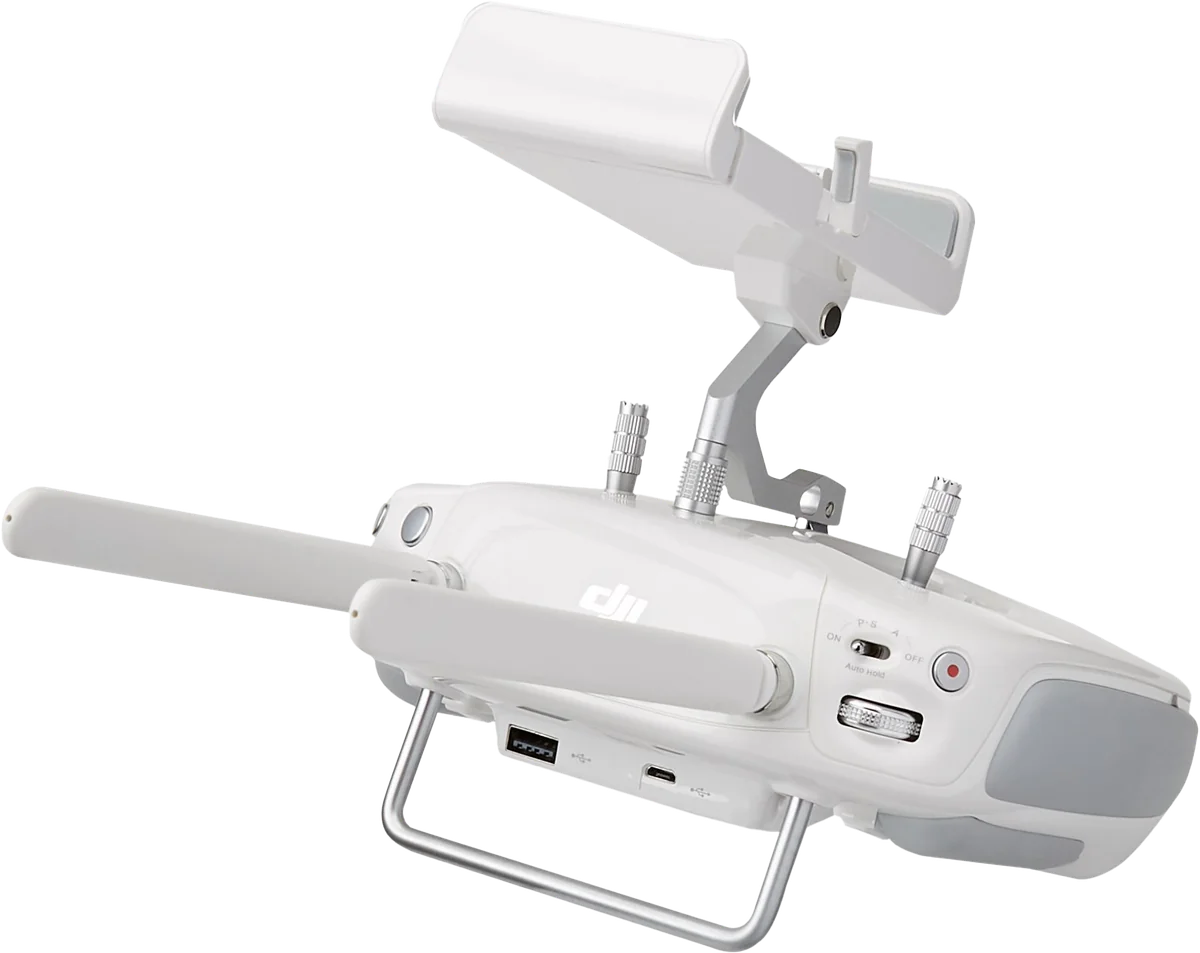
- Connect the controller to your computer through the micro-USB port on the bottom. Windows installs the driver by itself; the controller appears in Device Manager as “USB Serial Device (COMx)”. No DJI Assistant or other driver is needed.
- Run
DJI-Gamepad.exe. It finds the controller on its own. When you move the sticks, the LH / LV / RH / RV values on screen should change. - Start your game. Keep the DJI-Gamepad window open while you play.
Game settings
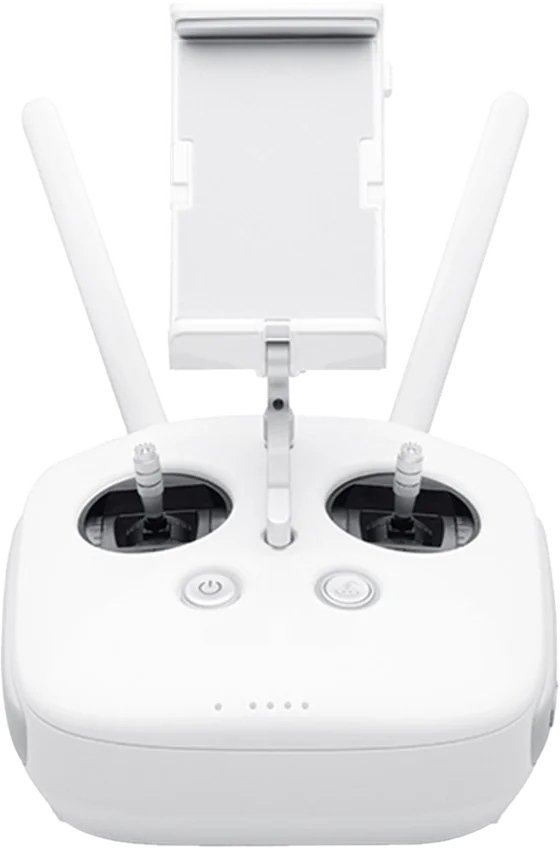
Pick “DJI PHANTOM 4 PRO” from the game’s controller list and calibrate the axes. Some games list it as “Xbox 360 Controller” or “XInput Controller”; it is the same controller.
| Remote | In game |
|---|---|
| Left stick vertical / horizontal | Throttle / Yaw (left analog stick) |
| Right stick vertical / horizontal | Pitch / Roll (right analog stick) |
| Gimbal wheel | LT / RT triggers |
If an axis works the wrong way round, flip it with “Invert” in the game’s settings. It works with Liftoff, Velocidrone, DRL Simulator, Uncrashed and other games that support XInput (Xbox) controllers.
How it works
When plugged into USB, the Phantom 4 Pro remote shows up on the computer as a serial (COM) port. The program asks it for the stick positions dozens of times per second using DJI’s own communication protocol (DUML), converts the values to a −1 to +1 range and feeds them into a virtual Xbox 360 controller created with the ViGEmBus driver. Games behave as if a real Xbox controller were plugged in. Nothing is written to the remote: its settings and firmware stay unchanged, and you can keep using it to fly your drone.
Frequently asked questions
Does the DJI Phantom 4 Pro controller work as a PC joystick? Not on its own: Windows recognizes the remote as a serial port, not as a game controller. This program does the translation and turns the remote into an Xbox controller that games recognize.
Does the drone need to be on? No. Only the remote controller needs to be on and connected to the computer via USB.
It says “DJI kumandası bulunamadı” (DJI controller not found). Make sure the remote is turned on. Some micro-USB cables only charge and do not carry data; try another cable or another USB port.
It says “Sanal kumanda oluşturulamadı” (virtual controller could not be created). The ViGEmBus driver is not installed. The program opens the installer itself; install it and restart your computer.
Windows Defender / SmartScreen shows a warning. This is normal because the program is an unsigned, home-made tool: “More info” › “Run anyway”.
Does it work with other DJI controllers? It was tested with the Phantom 4 Pro remote controller. It has not been tested with other DJI models.